TSI’s New SIGN-IN Instructions for Registered Users
Effective September 26, 2025, the SIGN IN process to your TSI Learning Center has changed.
IMPORTANT: Think Small Institute registered users must reset their passwords on their initial visit to their Learning Centers.
Please follow the steps below to update your password using the system’s “Forgot your password” link when you click SIGN IN from the menu on the Learning Center. This is required and necessary to ensure access and future use of your Learning Center.
Below are detailed instructions for users to refer to, if necessary. You may also watch this short welcome video.
1. Visit the Learning Center which is also accessible in the navigation menu pictured below.

2. On the Learning Center Home page, click “SIGN IN” in the top right corner.

3. In the “Sign In” window, click on the “Forgot your password?” link.
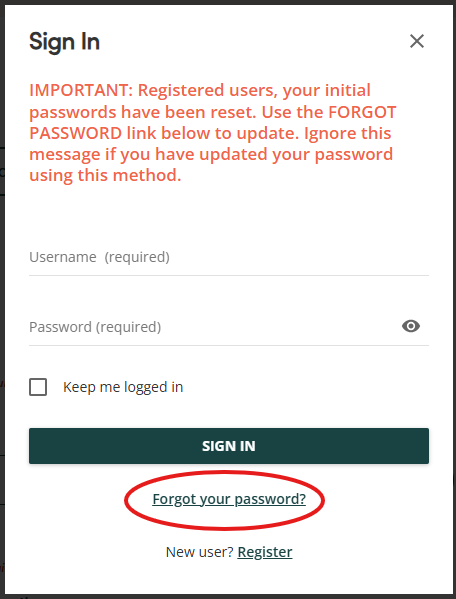
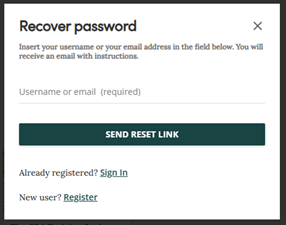
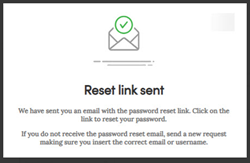
4. Type in your email address in the “Recover password” window (see below, left). Click “SEND RESET LINK” button. You will see a “Reset link sent” window (see below, right) indicating an email has been sent to your email address with a password reset link.
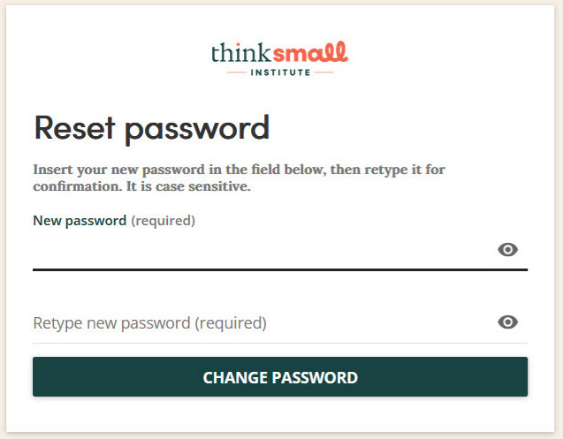
5. Find the email in your email box from no-reply@thinksmall.org and click the password reset link which takes you to a “Resent password” window. In the “Reset password” window, type in your new password and click CHANGE PASSWORD.
6. In the “Well done!” window, click on the “Sign In” link. You will be directed to Think Small Institute catalog and the “Sign In” window will open. Log in with your Email address and new password.

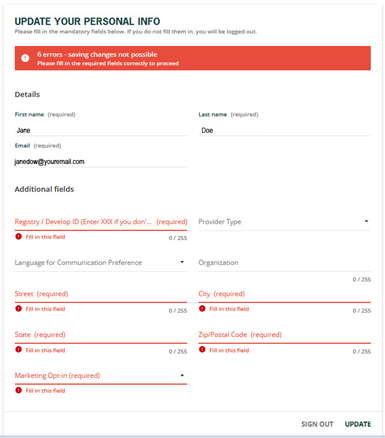
7. You will be prompted to update your personal information. Please review and update/complete the fields and click “UPDATE”.
You are all set!
If you did not receive an email with a password link or if have any problems, please call our customer support line at 651-233-2263.